How to Reserve a Room using Outlook
Body
Using Outlook Desktop Client
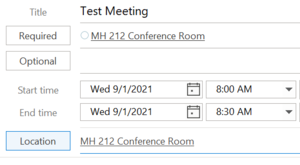
-
Start the Outlook application, and open the Calendar view by clicking the calendar icon in the lower-left corner of the screen.
-
When creating a meeting, click the Location button to display a list of rooms that may be scheduled on campus.
-
Double-click on a room to add it, and then click OK.
-
Use the Scheduling Assistant to view free/busy information for your meeting attendees and selected room(s). Note: You may add multiple rooms to a meeting to compare scheduling availability against meeting attendees. Be sure to remove extra rooms from the meeting before sending the invitation.
-
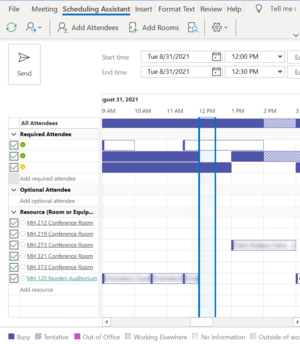 When you send your meeting invitation, most rooms will automatically send a meeting acceptance if the room is available. Some rooms reservations may require an approval before the booking is accepted.
-
If you cancel a meeting, be sure to cancel the meeting in Outlook, which will automatically cancel the room reservation, and make the room available for others to schedule.
Using Outlook Online Web Client
-
Open a web browser and go to Outlook Online calendar (https://outlook.office.com/calendar/)
-
When creating a meeting, click in the field labeled Search for a room or location, and begin typing the name of the room(s) you wish to include. Select each room to add it to the rooms list for the meeting.
-
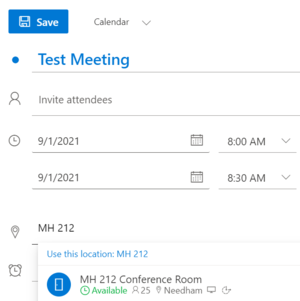 Use the Scheduling Assistant to view free/busy information for your meeting attendees and selected room(s). Note: You may add multiple rooms to a meeting to compare scheduling availability against meeting attendees. Be sure to remove extra rooms from the meeting before sending the invitation.
-
When you send your meeting invitation, most rooms will automatically send a meeting acceptance if the room is available. Some rooms reservations may require an approval before the booking is accepted.
-
If you cancel a meeting, be sure to cancel the meeting in Outlook, which will automatically cancel the room reservation, and make the room available for others to schedule.
Details
Details
Article ID:
18277
Created
Fri 11/21/25 1:50 PM
Modified
Fri 11/21/25 1:50 PM